
Cerberus
Cerberus is a server-side monitor for your price levels and densities. You set levels in the terminal; when a level triggers, the server sends a notification to Telegram via the bot. This lets you get alerts even when the terminal is closed.
Connecting your account
To link the terminal to Telegram, use the Cerberus settings in the terminal and the Telegram bot.
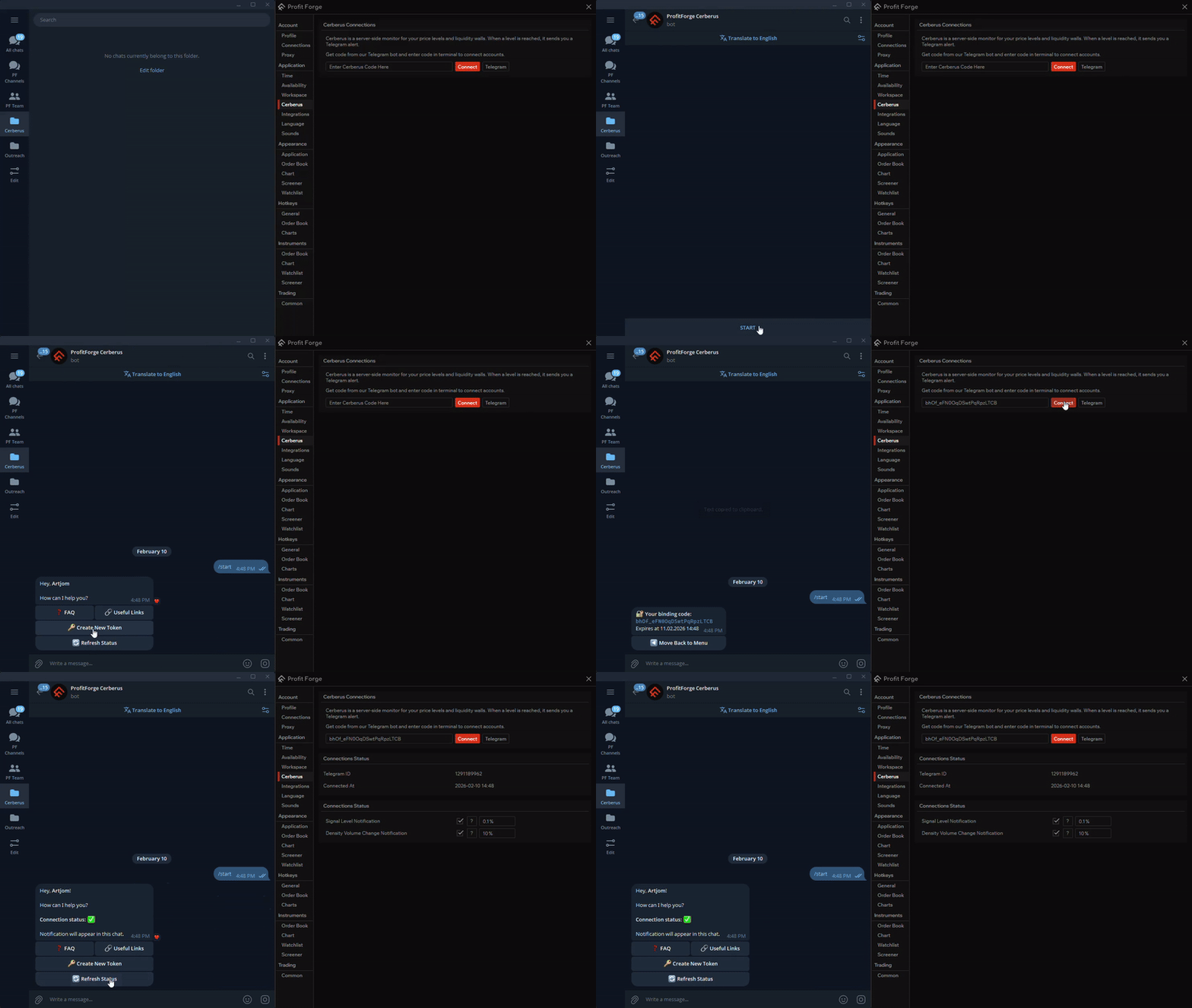
- Open Application → Cerberus settings in the terminal.
- Click the Telegram button — the bot opens in Telegram.
- In the bot: press Start, then choose your language (Russian or English).
- Tap Create new binding key — the bot will generate a one-time code.
- Copy the code, paste it into the connection field in the terminal, and click Connect.
- To verify: in the bot, use Update status — you should see the connection status (Telegram ID and date/time will also appear in terminal).
Tip
If the status does not update, check that you entered the code correctly and that you clicked Connect in the terminal. You can generate a new binding key in the bot and try again.
After connection: notification settings
Once connected, you can control what Cerberus notifies you about. In the same Cerberus settings you'll see Connection status (Telegram ID and "Connected" with date/time) and the notification options below.
Signal Level Notification
- Checkbox — turn notifications for signal levels on or off.
- Percentage field — how close price must get to the level (in %) before a Telegram alert is sent. For example, 0.1% means you get notified when price is 0.1% away from the level.
Use this when you want advance warning as price approaches a level you care about. Consider possible delays with network or Telegram work.
Density Volume Change Notification
- Checkbox — turn notifications for density changes on or off.
- Percentage field — how much the density must change (in %) for a Telegram alert. For example, 10% means you get notified when density changes by 10% or more.
Use this to spot significant shifts in order book density without watching the terminal.
Both types of alerts are monitored on the server, so you can receive them even when the terminal is not running. Adjust the percentages to match how sensitive you want the alerts to be.
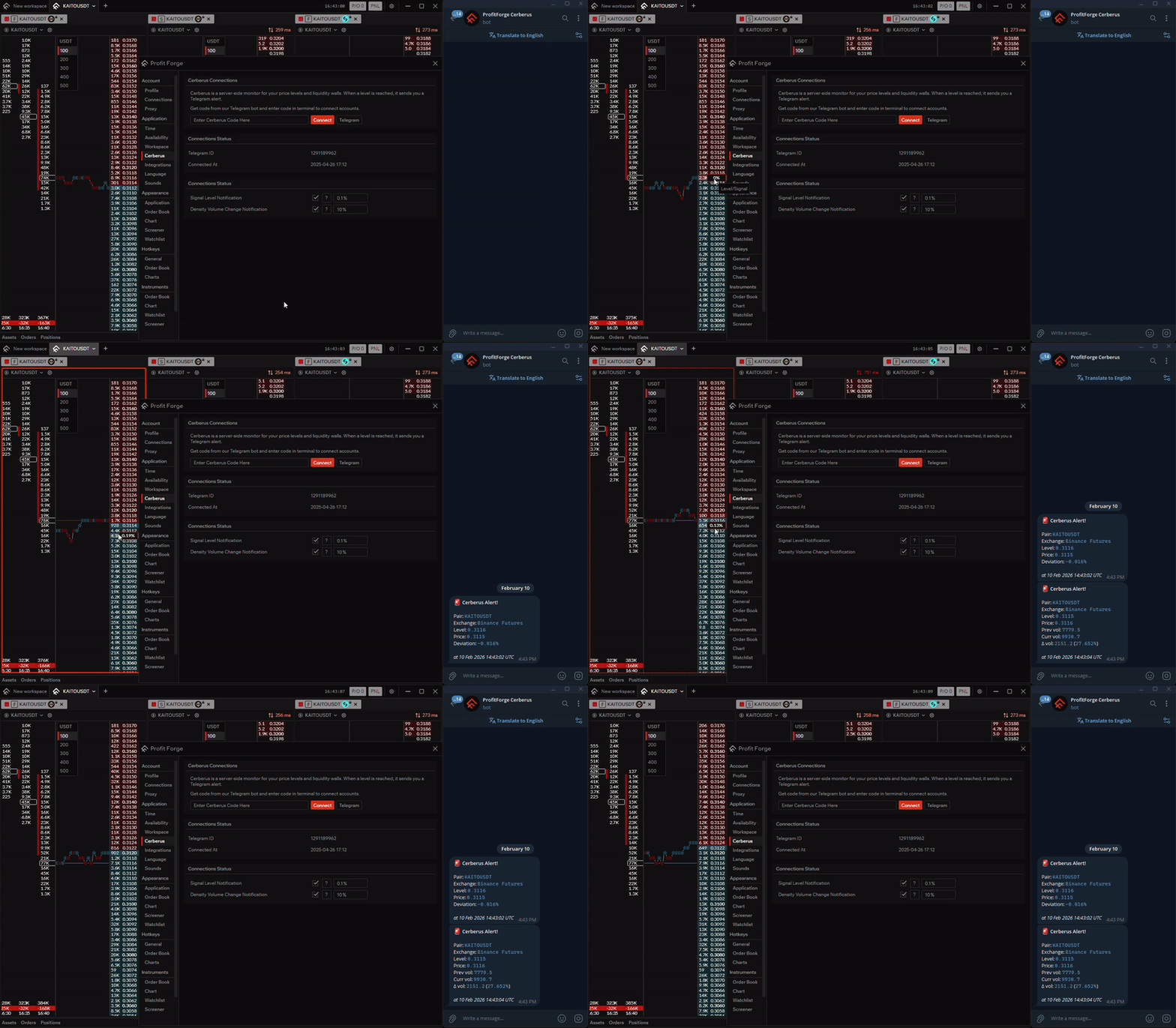
Setting levels in the terminal (default shortcuts)
Levels are placed from the terminal. By default:
- Signal level — L + RMB (L and right mouse button) on the chart or order book.
- Density change level — X + LMB or X + RMB (X and left or right mouse button).
You can change these shortcuts in the application hotkey settings if needed.