
Trading
The terminal supports all order types: from exchange limit orders to terminal stop orders triggered by order book density.
General trading settings

- Order execution on mouse — when to place an order in the book: on release or on press. With “on release”, the order is placed after you release the mouse button; you can change your mind and move the cursor away before releasing, and no order will be placed. With “on press”, the order is placed as soon as you click.
Position settings

Cancel orders after closing position — when enabled, closing the position also cancels all orders for that pair.
Allow position flip — when disabled (default), you cannot flip the position by trading the opposite side; only the hotkey for flipping (R by default) works, and orders to close or in the opposite direction are placed as Reduce Only. When enabled, opposite-side orders are normal (non–Reduce Only).
Close orders with position close button — when enabled, pressing the position close hotkey (D by default) closes the position and cancels its orders in one action. This avoids confusion under stress when you might otherwise press the wrong key and leave orders in the book.
Limit orders

- Limit order depth into spread — how far into the opposite side of the book the limit order is placed. In volatile markets, a limit at the spread may not get filled; a negative value (e.g. −1%) places the order 1% into the opposite side to improve fill probability.
Stop orders
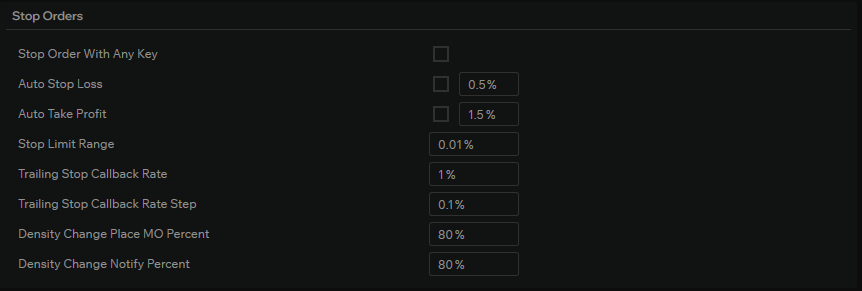
Stop order with any button — toggles behaviour for stop-limit and stop-market orders. When enabled, a click in the ask zone places a long stop and a click in the bid zone places a short stop. When disabled, left click places a buy and right click a sell.
Auto stop-loss and Auto take-profit — when enabled, a stop-loss and/or take-profit is placed at the percentage shown in the field to the right. You can enable one or both.
Stop-limit order depth — how far the limit order is placed when the stop triggers. A negative value places the limit deeper into the opposite side (past the spread); a positive value places it from the spread.
Trailing stop callback % — the callback rate for the trailing stop: the distance, as a percentage from the maximum profit reached, at which the stop is held. When price retraces by this percentage from the peak, the trailing stop triggers. This is the classic trailing stop behaviour: the stop follows price at a fixed percentage distance from the best price seen.
Market order on density change — a terminal stop that watches order book density and places a market order when density changes by the set percentage. Consider your network latency and the pair’s liquidity: with thin books and high latency, price may move through the book before the order fills.
Alert on density change — instead of placing an order, plays a sound and shows a notification with density information. When Cerberus is connected, it also sends a notification (e.g. to Telegram).
Default trade volumes (USD)
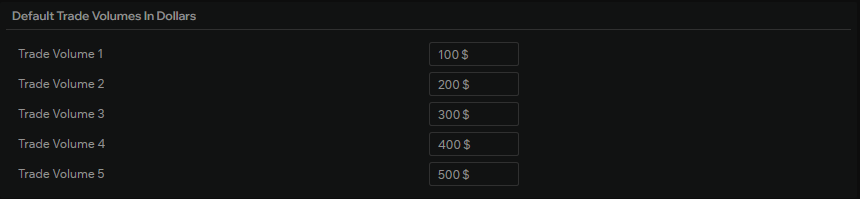
Five fields define default trade sizes in dollars for all order books. You can override these locally in each order book to suit the pair.
Order cascade
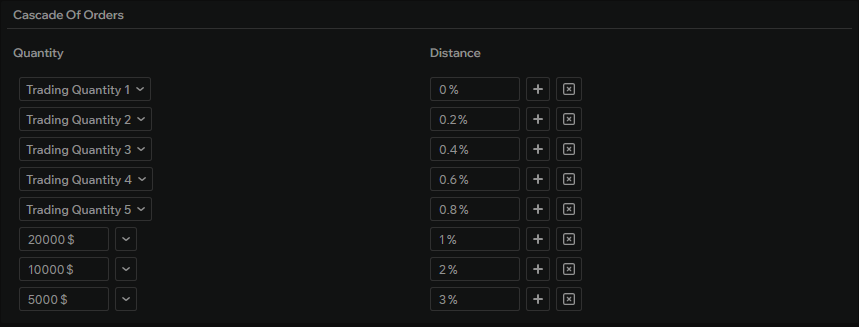
A cascade of limit orders can be placed in the book while holding the cascade hotkey (B by default). You can add any number of legs, but we recommend no more than 15. Use the + button next to the distance field to add a limit order and the × to remove one.
- Distance — how far from the mouse cursor each limit order in the cascade is placed.
- Volume — choose one of the five default volumes or enter a custom amount.