
Exchanges
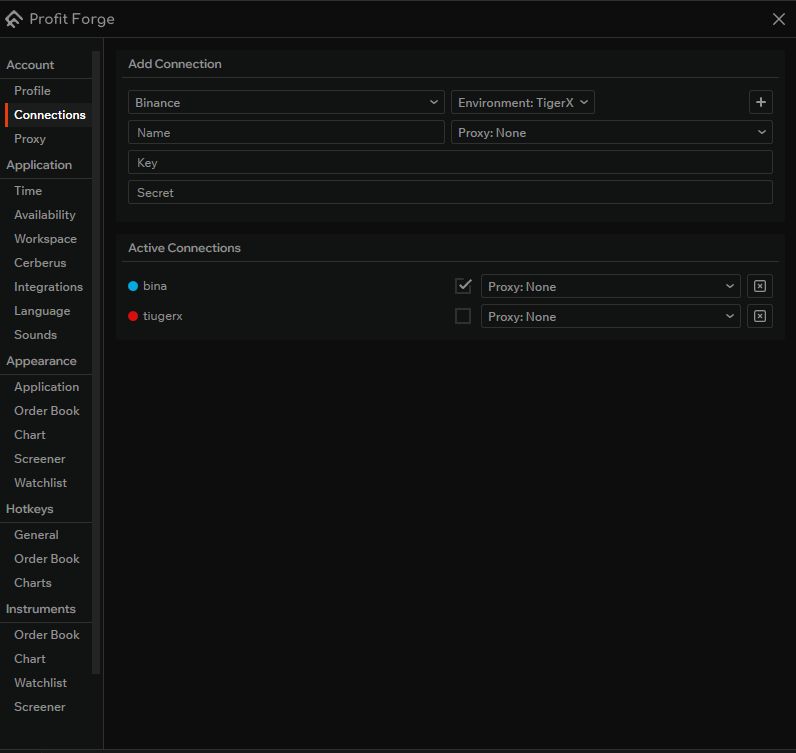
In the Connections → Exchanges section you add API keys for exchanges so the terminal can send requests and place trades on your behalf.
You can create an API key pair (key and secret) in two ways:
- on the exchange website — in security settings or the API section;
- with a broker — for example Tiger Broker.
After creating the keys, enter them in the Add Connection block and click the add button — the key will be validated and, if successful, appear in the list below.
Add connection
At the top of the Connections page you'll find fields and dropdowns for a new connection.
1. Exchange selection
The dropdown lists 7 exchanges:
- Binance
- Bybit
- OKX
- Kucoin
- Gate
- Bitget
- Mexc
Choose the exchange you're connecting the key to.
2. Environment selection
Next to the exchange selector is the Environment dropdown:
- For Binance: the TigerX environment is available as a separate connection (in addition to standard Live/Demo).
- For other exchanges: regional environments (e.g. Georgia, Hong Kong) are shown, and demo environments when the exchange supports them.
Select the environment that matches the account the API key was created for.
3. Key name
The Name field is a label for the connection (e.g. "binance", "tigerx"). Use it to tell multiple keys or environments apart.
4. Key
The Key field is where you paste the API key issued by the exchange or broker.
5. Secret key
The Secret field is the secret that goes with this API key. Keep it safe and do not share it.
6. Proxy
The Proxy: None dropdown lets you choose a proxy for this connection:
- you can set a proxy when adding the key;
- or choose or change the proxy after adding — in the "Active Connections" list each key has its own proxy dropdown.
7. Add and validate
When the exchange, environment, name, key, and secret are filled in (proxy is optional), click the «+» (plus) button to the right of the environment selector.
The terminal will validate the key. If validation succeeds, the connection appears in the Active Connections block below.
Tip
If validation fails, check that the key and secret were copied without extra spaces and that the key has the required permissions (e.g. read and trade) on the exchange or broker website.
Active connections
The bottom part of the page lists all added connections. Each row shows:
- Name of the connection;
- Status indicator (the "light bulb" to the left of the name) — blue means the key is active, red means it is inactive;
- Checkbox to the right of the name — turn it on to activate the key; after adding a key successfully, you can activate it by clicking this checkbox;
- Proxy (Proxy: None or the selected proxy);
- an option to remove the connection (the "x" icon).
You can change the proxy for an existing key via the dropdown in that connection's row.
Important
You cannot have multiple keys active at the same time for the same exchange. You also cannot have both a Binance key and a TigerX key active at once — only one key per exchange (including TigerX for Binance) can be active at any time.
Security and key storage
API keys are stored locally on your device and are not sent anywhere except to the chosen exchange (or broker) when trading and when checking the connection.
Everything is designed with security in mind: keys are encrypted and stored as safely as possible. The terminal does not send keys to any third-party servers.