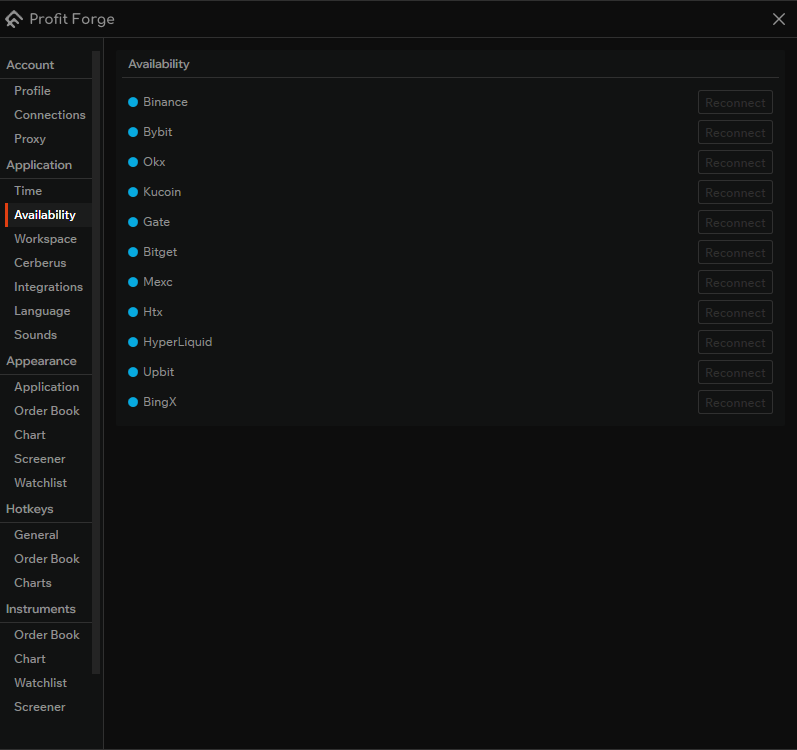
Availability
In Connections → Availability you can see all supported exchanges and their connection status. The list matches the exchanges you can add in Connections with other exchanges that are in read-only mode; here you only see whether each exchange is currently reachable and whether instrument data (pairs) is loaded.
Status indicator
Each exchange has a status light next to its name:
- Blue — the exchange is connected successfully; data is available.
- Red — the connection is missing or failed; the terminal could not connect or load pairs from this exchange.
Reconnect button
Next to each exchange there is a Reconnect button. It is enabled only when the status is red. Click it to try connecting again and loading pairs from that exchange. If the connection succeeds, the light turns blue and the button becomes inactive.
How to open it
- Open settings and go to Availability (under Application).
- Check the status lights to see which exchanges are connected.
- If an exchange shows red, fix the connection (e.g. in Connections or proxy) and use Reconnect to retry.