Proxy
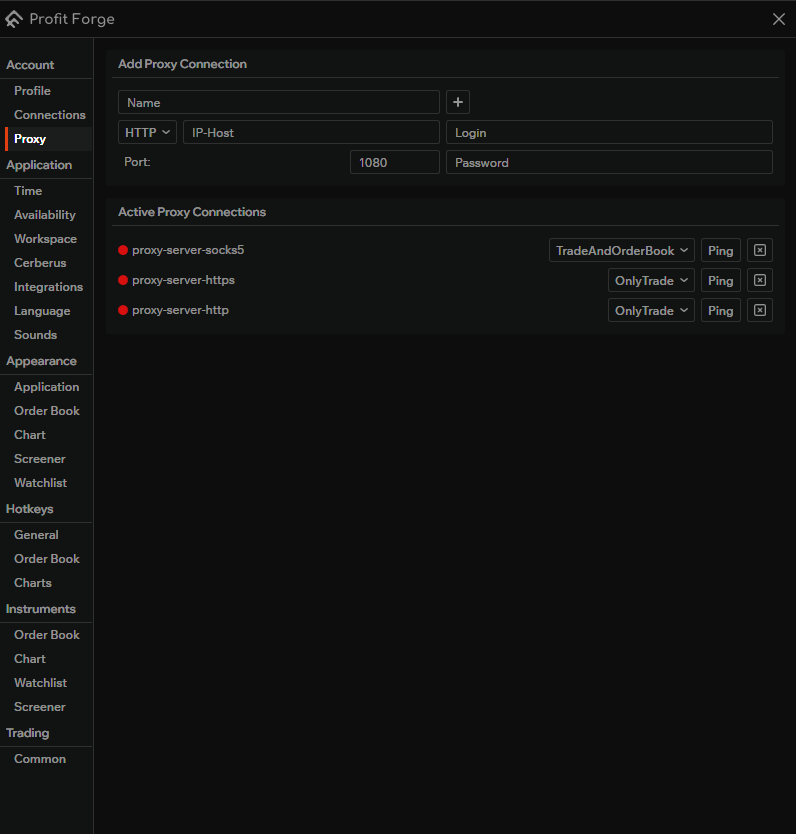
In Connections → Proxy you can add and manage proxy connections so the terminal can use them for optimal routing to the exchange. Configure one or more proxies here, then assign them to exchange keys on the Connections page.
Supported protocols
The following protocols are supported:
- HTTP
- HTTPS
- SOCKS4
- SOCKS5
Choose the protocol that matches your proxy server.
Add proxy connection
At the top of the Proxy page you'll find the Add Proxy Connection form. Fill in the fields and click the «+» button to add the proxy.
1. Name
Enter a name for the connection so you can tell your proxies apart (e.g. "proxy-server-socks5", "eu-gateway").
2. Protocol
Use the dropdown to select the proxy protocol: HTTP, HTTPS, SOCKS4, or SOCKS5.
3. IP address or host
Enter the IP address or domain name of the proxy server.
4. Port
Enter the port of the proxy server. The interface often shows a default such as 1080; change it if your proxy uses a different port.
5. Login and password
Login and Password are optional. Use them if your proxy requires authentication.
Tip
After filling in at least name, protocol, IP/host, and port, click the «+» button next to the name field. The new proxy will appear in the Active Proxy Connections list below.
Active proxy connections
The bottom part of the page lists all added proxy connections. For each one you can:
Status indicator
A small light (lamp) to the left of the proxy name shows the connection status:
- Blue — the server has been pinged successfully and the entered data is valid.
- Red — the server has not been pinged yet, or the connection data is incorrect.
Ping
Use the Ping button to test the proxy. After a successful ping, the status light turns blue; if the proxy is unreachable or credentials are wrong, it stays red.
Mode
Each proxy has a mode dropdown with two options:
- OnlyTrade — only REST trade requests go through the proxy. Market data (order book, etc.) uses the direct connection.
- TradeAndOrderBook — all traffic to the exchange (market data and trade requests) goes through the proxy.
Choose the mode depending on whether you need the proxy only for trading or for full exchange traffic.
Delete
Use the «X» button at the end of the row to remove the proxy connection from the list.
Using proxy with exchange keys
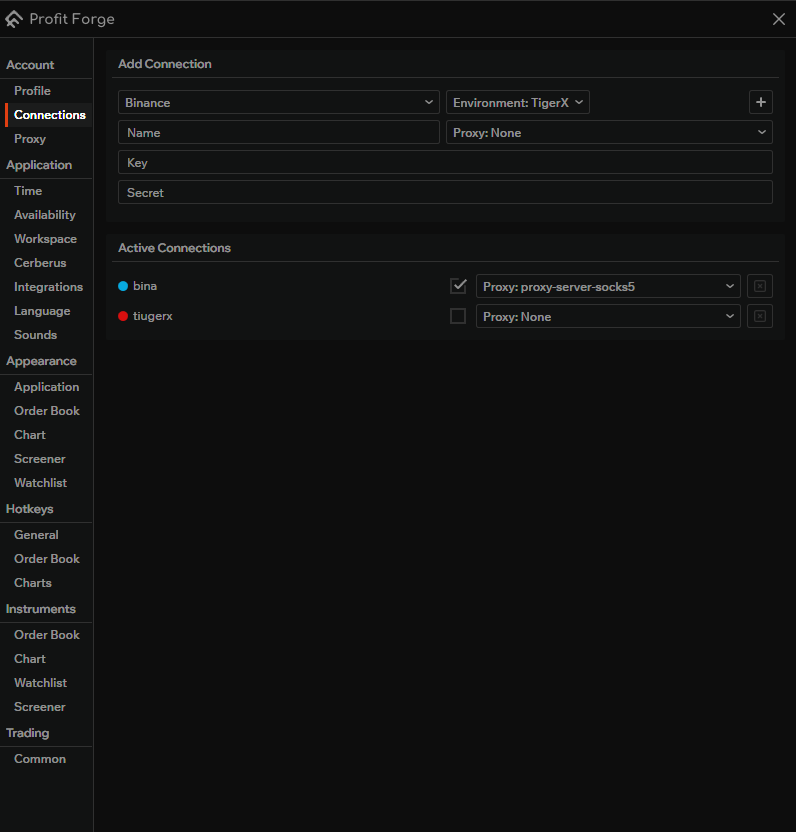
After you've added one or more proxies here, you can assign them to your exchange API keys on the Connections page:
- When adding a new connection, use the Proxy: None dropdown to select a proxy (or leave None).
- For existing connections, use the proxy dropdown in each row of the Active Connections list to choose or change the proxy for that key.
For the full flow (exchange, environment, key, secret, and proxy), see Exchanges.