
Settings
The ProfitForge terminal lets you configure the order book in great detail to match your preferences.
General settings
General settings are mostly self-explanatory; below is a detailed description of each.
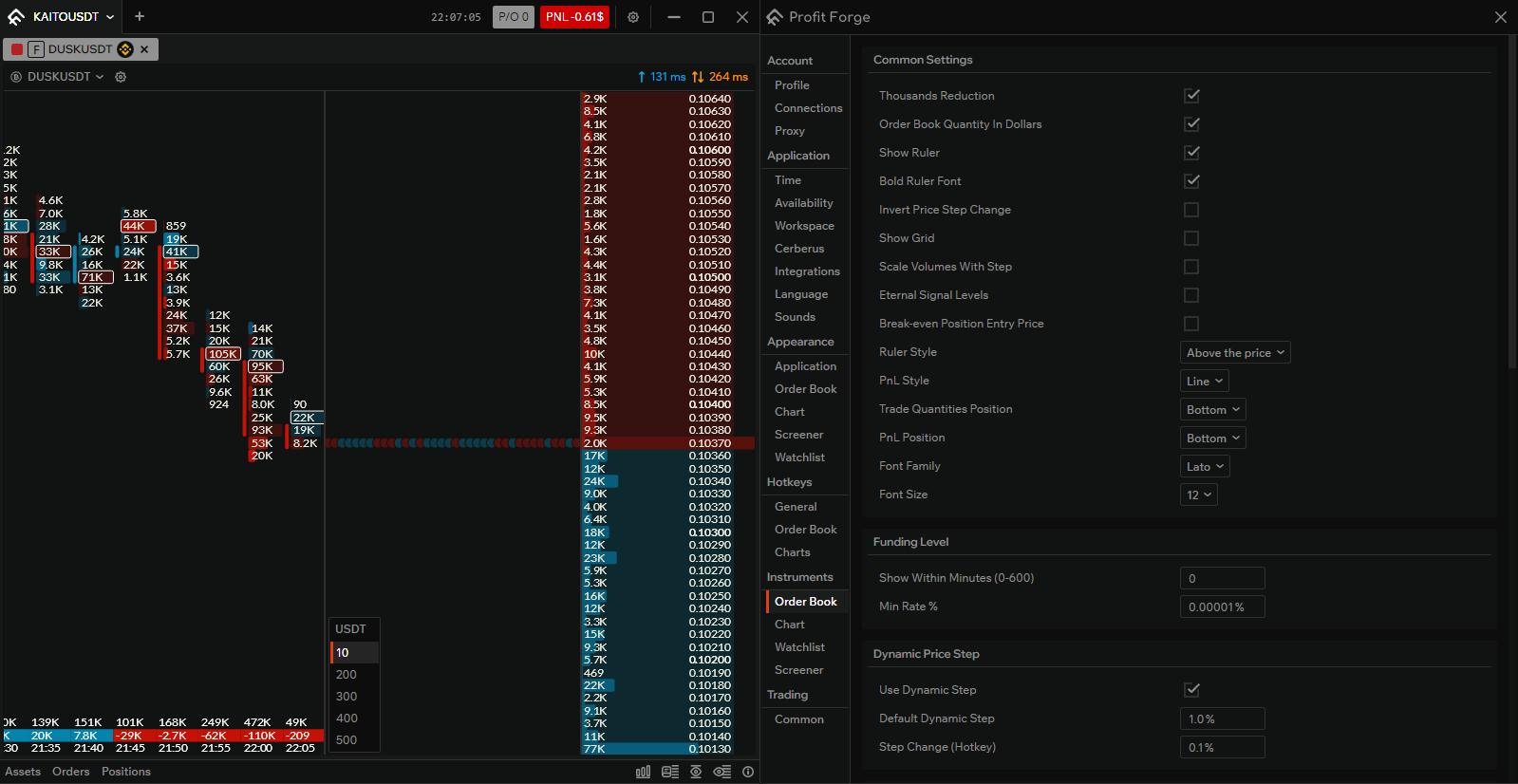
Thousands abbreviation — controls whether numbers in the order book are shortened. For example, 100,000 is shown as 100k and 1,000,000 as 1M. When enabled, numbers are abbreviated.
Order book volumes in dollars — controls whether order book values are shown in lots or converted to dollars. When enabled, all lots are shown in dollars.
Show ruler — controls whether the ruler is always visible. The ruler shows the distance from the spread. When enabled, the ruler is displayed.
Bold ruler font — controls the ruler font: regular or bold. When enabled, the font is bold.
Invert price step change — controls scroll direction when changing the price step. When disabled, Shift + scroll down expands the order book and Shift + scroll up contracts it. When enabled, the behaviour is reversed.
Show grid — controls whether a grid is shown in the order book. When enabled, the grid shows round price levels and interval separation in clusters.
Scale volumes with step — controls whether order book volumes scale with the price step. For example, a volume of 10k at step 10 will appear visually (by row fill) like 1k.
Eternal signal levels — controls whether triggering a level deactivates it. When enabled, levels trigger on every price crossing without needing to be set again.
Display position entry by breakeven — controls where the position entry is drawn. When enabled, the position entry is averaged and drawn at the breakeven price.
Ruler style — two options: over price or over ticks. Over price shows the ruler above the price; over ticks shows it in the tick zone.
PnL style — controls how PnL is displayed: row or panel. For more details, see Profit and Loss.
Trade volumes position — controls where trade volumes are shown: bottom or top.
PnL position — choose where PnL information appears: top or bottom.
Font — choose any font installed in Windows (including custom fonts).
Font size — choose any font size.
Funding level
These settings control how funding is displayed in the order book.

Show within minutes — choose how many minutes before funding the level starts to show. For example, set 20 to show the level 20 minutes before funding.
Min. rate % — choose the minimum funding rate to display. If you set 0.1%, funding levels below 0.1% will not be shown in the order book.
Dynamic price step
Dynamic price step settings tie the visible order book range to a percentage of the spread to the top or bottom edge of the screen.

Use dynamic price step — when enabled, allows using the dynamic price step. The step is defined as a percentage of the spread to the top or bottom edge of the screen.
Default dynamic step — sets how much distance from the spread to the screen edge is visible. At 1%, the order book shows 1% above and below the spread. If the pair’s minimum price step cannot show that range, the minimum possible step for the pair is used instead.
Step change (hotkey) — sets how much the step changes per mouse wheel scroll. For example, at 0.1% one scroll changes the step from 1% to 1.1%.
TIP
Double-clicking the dynamic step hotkey resets the step to the default value.
Auto-calculation of volumes
A distinctive feature of the terminal is automatic volume calculation in the order book, so you don’t have to tune each book manually. Auto-calculation can work in two ways: semi-automatic and fully automatic. For more on both modes, see Auto-calculation of volumes.
The fully automatic mode has only three settings:

Use fully automatic calculation — enable this checkbox to turn on fully automatic calculation.
Base value multiplier step — how much the base value multiplier changes per action (e.g. per mouse scroll). With a step of 10%, the value goes from 100% to 110%.
Base value step — how much the base value changes per scroll. For example, with a step of 100,000, one scroll changes the value from 1,000,000 to 1,100,000.
The semi-automatic mode has eight settings. For this mode clear the checkbox «Use fully automatic calculation» — the extra fields will then appear.
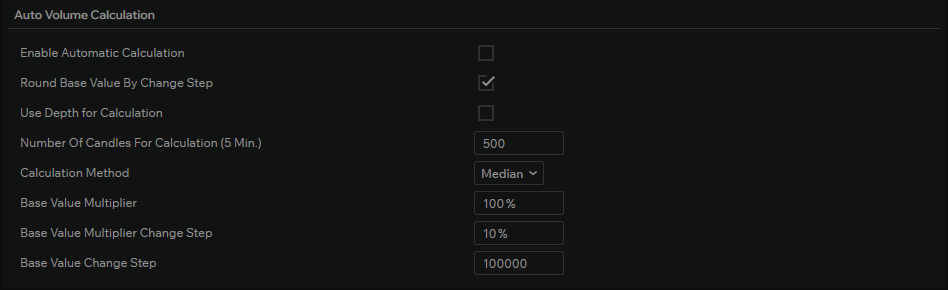
Use fully automatic calculation — when the checkbox is cleared, semi-automatic calculation is used and the remaining settings below become available.
Round base value to step — controls whether the base value is rounded to a multiple of the base value step.
Use order book in calculation — adds the current order book state as an input to the auto-calculation. For example, the presence or absence of large volumes affects the resulting base value.
Number of 5-min candles for calculation — how many 5-minute history candles are used as the basis for the calculation.
Calculation method — three options: average, median, maximum. The algorithm computes the result differently: average uses the mean of possible values, median uses the median of possible calculations, maximum uses the highest possible value (most conservative).
Base value multiplier — sets the multiplier applied to the base value. For example, at 100% the base value is multiplied by 1, at 200% by 2. Lets you control the final value more flexibly.
Base value multiplier step — how much the base value multiplier changes per action (e.g. per mouse scroll). With a step of 10%, the value goes from 100% to 110%.
Base value step — how much the base value changes per scroll. For example, with a step of 100,000, one scroll changes the value from 1,000,000 to 1,100,000.
Order book settings
This block controls how volumes are shown in the order book and how levels are highlighted by volume size. Percentage values are relative to the base value after auto-adjustment.

Precision shorten from — when the checkbox is enabled, numbers in the order book are shown with trailing zeros after the decimal shortened. The field sets the threshold: at 0, all trailing zeros are shortened. For example, 0.001 is shown as (2)1 — the number in brackets is the count of zeros removed, followed by the significant part.
Fill volume — at what volume the level row is considered fully filled (cell fill). Expressed as a percentage of the base value. At 100%, the row is fully filled when the volume at that level equals or exceeds the base value.
Large volume — threshold as a percentage of the base value. When volume at a level reaches this value, the level gets both the fill and a distinct “large volume” colour highlight. Works like fill volume but with separate visual styling.
Extra large volume — a higher threshold (e.g. 200%). When volume at a level reaches this percentage of the base value (at 200%, twice the base volume), the “extra large volume” colour is applied, more prominent than the large volume highlight.
Tick settings
These settings control how trade ticks are shown in the tick zone: volume filtering, bid/ask aggregation, and tick size and shape. Volume percentages are relative to the base value.
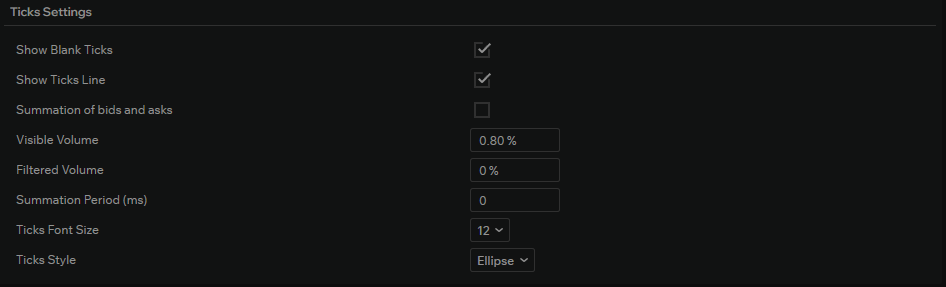
Show blank ticks — when enabled, ticks that fail the visible volume filter are still shown on the tape; their volume number is hidden, but the tick marker remains visible.
Show ticks line — behind the ticks there is a line along which they move. When enabled, this line is visible.
Summation of bids and asks — when enabled, bid and ask ticks within the same time window (or at the same price) are combined into one tick with net volume. For example, a bid tick +20 and an ask tick −10 become a single bid tick +10. Works together with “Summation period”; without a period, combination is by price only.
Visible volume from — minimum volume as a percentage of the base value for the tick’s volume number to be shown. At 0.8%, the tick volume is displayed only when it is at least 0.8% of the base volume.
Filtered volume — ticks with volume below this percentage of the base value are removed: they do not appear on the tape and do not move it, as if those trades did not occur.
Summation period (ms) — time window in milliseconds over which ticks are aggregated when “Summation of bids and asks” is enabled.
Ticks font size — font size used for volume numbers in ticks.
Ticks style — shape of the tick marker on the tape: ellipse (circles) or square.
Cluster settings
This block configures how clusters are shown in the cluster zone: column highlighting, total volume and delta, time interval, and row fill style. Volume percentages are relative to the base value (see Auto-calculation of volumes).
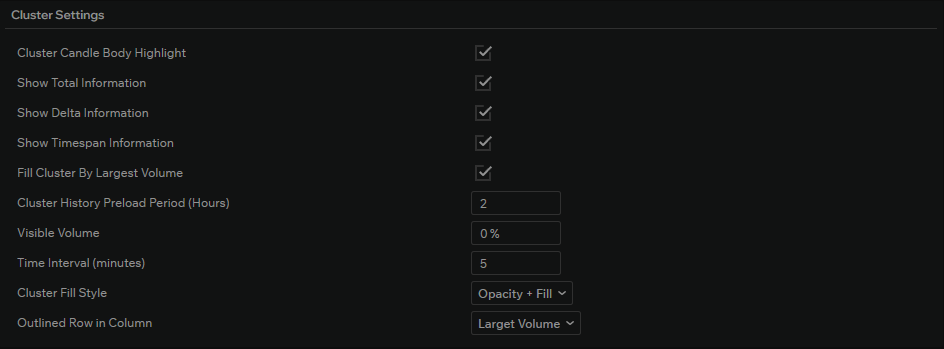
Cluster candle body highlight — when enabled, a coloured strip is shown behind each cluster column, matching the candle: red for a falling column, blue for a rising one.
Show total information — when enabled, the total volume over the selected interval is shown at the bottom of each cluster column.
Show delta information — when enabled, the volume delta (buy volume minus sell volume) for the interval is shown in the column.
Show timespan information — when enabled, the start time of the column’s interval is shown (e.g. 20:45 or 20:50 for a 5-minute interval).
Fill cluster by largest volume — when enabled, the base volume is ignored: row fill in the column is relative to the maximum visible volume in that column. The “Fill volume” setting is hidden in this mode.
Fill volume — at what volume (as a percentage of the base value) a row in the column is considered fully filled. This setting is only visible when “Fill cluster by largest volume” is off.
Cluster history preload period (hours) — how many hours of cluster history to load, from 1 to 24.
Visible volume — minimum volume as a percentage of the base value for volume numbers to be shown in the column rows.
Time interval (minutes) — default cluster interval for all order books, in minutes (e.g. 5 for 5-minute clusters).
Cluster fill style — how rows in the column are drawn:
- Brightness — the row is always filled full width; brightness depends on the row’s delta strength.
- Fill — row fill is proportional to volume in the row, brightness is constant.
- Opacity + fill — brightness from delta, fill from volume.
Outlined row in column — which row in the column is outlined: Largest volume — the row with the maximum volume in the interval, or Last tick in interval — the row of the last trade in the interval.