
Settings
The Screener tool has its own settings: appearance, voice announcements for events, the list of exchanges and market types used to compute densities, density calculation parameters, and alert thresholds. You can also specify a list of currency pairs to exclude from the map.
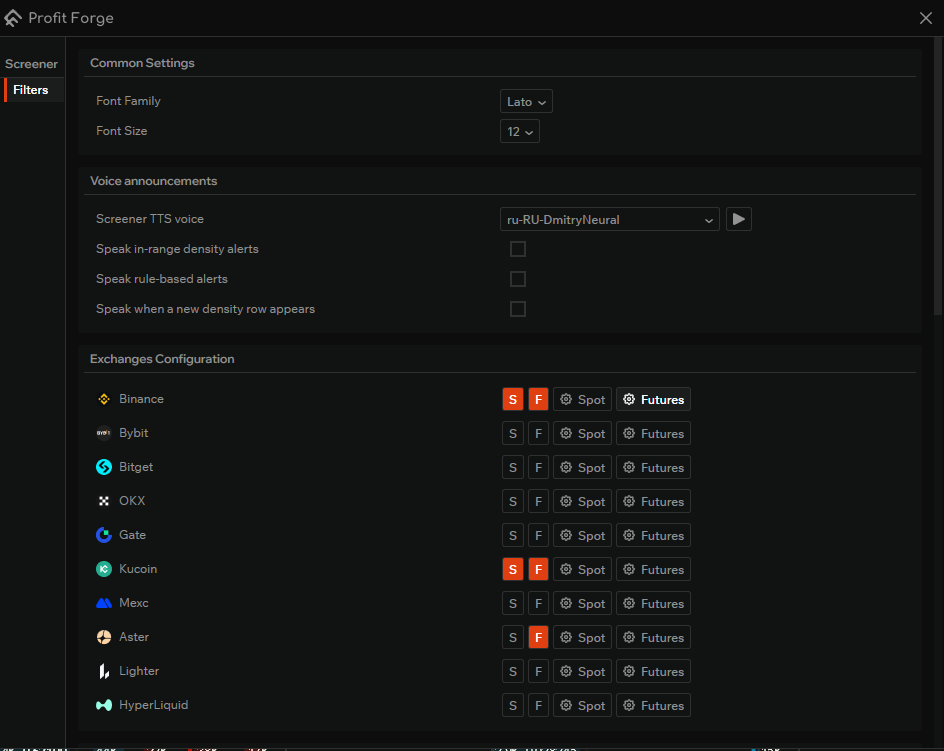
Common Settings
This section controls the appearance of the screener interface.
- Font Family — choose the font used for pair symbols, volumes, and other labels on the density map. Any font installed in Windows (including custom fonts) can be selected.
- Font Size — choose the font size. This affects readability and how densely markers are packed on the map.
Voice announcements
The screener can announce events out loud (TTS). This section controls the voice and which events are spoken.
- Screener TTS voice — choose the voice used to announce events. Both system Windows voices and neural voices (e.g.
ru-RU-DmitryNeural) are available. The button next to the dropdown plays a test phrase with the selected voice. - Speak in-range density alerts — speak when a large density appears within the configured distance from the spread.
- Speak rule-based alerts — speak alerts triggered by threshold rules (NATR, price change, impulse, etc.).
- Speak when a new density appears — speak when a new density matching the filters appears.
Exchanges Configuration
This section selects which exchanges and market types the screener uses to build the density map.
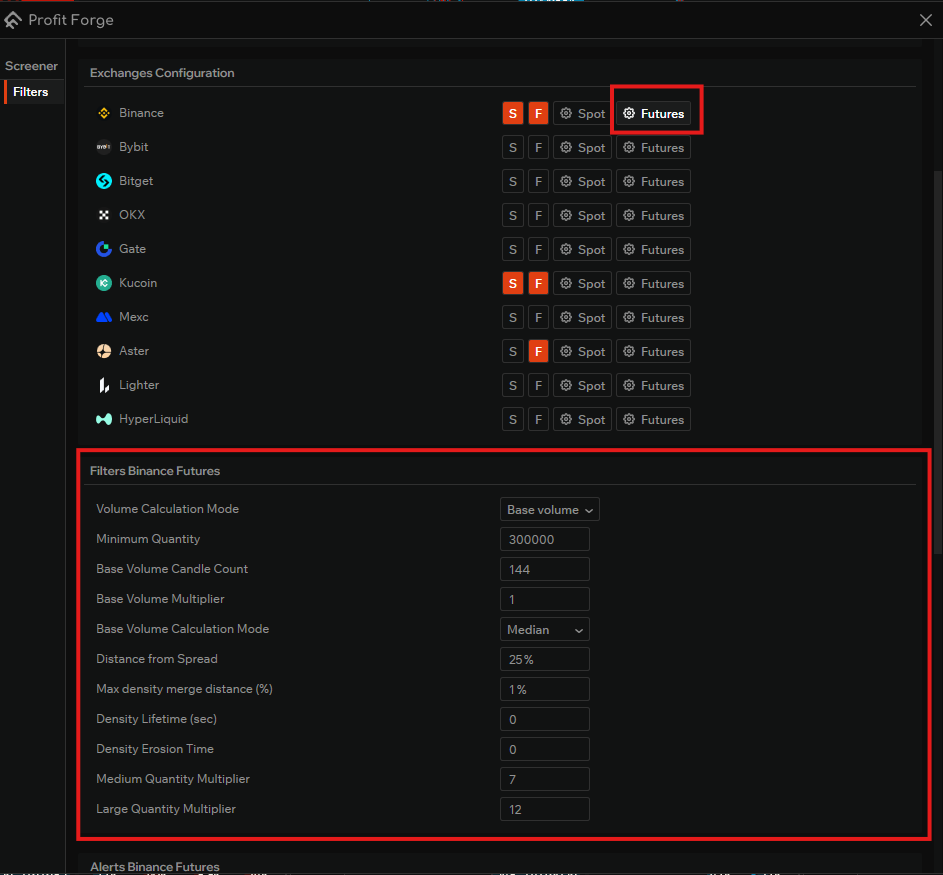
For each exchange (Binance, Bybit, Bitget, OKX, Gate, Kucoin, Mexc, Aster, Lighter, HyperLiquid, etc.) the following controls are available:
- S (Spot) — enable density calculation on this exchange's spot market.
- F (Futures) — enable density calculation on this exchange's futures market.
- Spot / Futures (gear icon) — opens the parameter blocks (filters and alerts) for the specific "exchange + market type" pair. The active block is highlighted with a border.
The enabled S and F toggles determine which markers can appear on the map. The density calculation parameters and alert thresholds are configured separately for each "exchange + market type" combination — in the "Filters …" and "Alerts …" sections below.
Filters per exchange
When you select a specific "exchange + market type" combination (e.g. Binance Futures), a Filters … section appears below with the density calculation parameters for that combination. Parameters are independent for each exchange and market type.
- Volume Calculation Mode — how the density volume is calculated: by the instrument's base volume or by absolute values.
- Minimum Quantity — the minimum density volume (in monetary terms); densities below this value are not shown in the screener.
- Base Volume Candle Count — the number of candles used to compute the instrument's base volume (e.g. 144 candles).
- Base Volume Multiplier — the coefficient applied to the base volume when comparing it to the density.
- Base Volume Calculation Mode — how volume is aggregated across the selected candles: mean, median, etc.
- Distance from Spread — the maximum distance (in %) of a density from the current spread. Densities further than this distance are not shown in the screener.
- Max density merge distance (%) — the threshold within which nearby densities are merged into one.
- Density Lifetime (sec) — the minimum time a density must remain in the order book to appear in the screener.
0means count it immediately. - Density Erosion Time — the time it takes for a density to be considered "eroded", taking the current market activity into account.
- Medium Quantity Multiplier — how many times the density volume must exceed the base volume for the density to fall into the Medium category.
- Large Quantity Multiplier — how many times the density volume must exceed the base volume for the density to fall into the Large category.
The Small / Medium / Large categories determine which column of the density map (see Structure) a marker goes into.
Alerts per exchange
Below the "Filters …" section is an Alerts … section for the same "exchange + market type" combination. It defines the conditions under which the screener generates alerts (including voice alerts — see the "Voice announcements" section above).
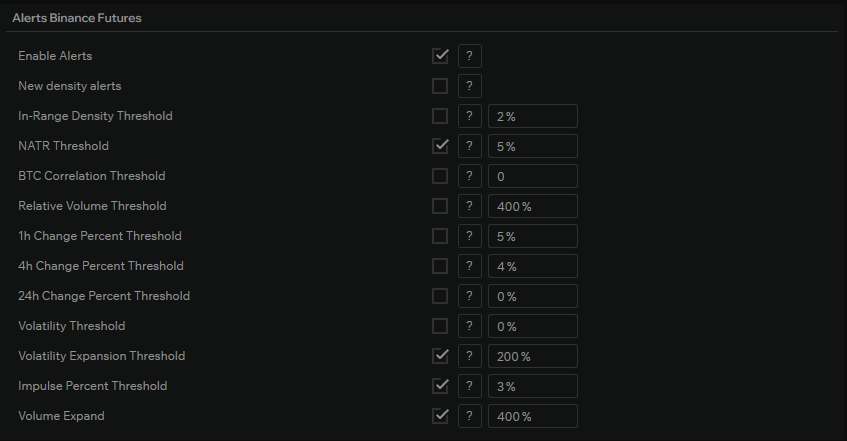
- Enable Alerts — the master switch for alerts on the selected exchange and market type.
- New density alerts — alert when a new density passing the filters appears.
- In-Range Density Threshold — alert when a density is closer than the specified percentage to the spread.
- NATR Threshold — alert when a pair's NATR is above the specified value.
- BTC Correlation Threshold — alert when a pair's correlation with BTC is below the specified value.
- Relative Volume Threshold — alert when the relative volume is above the specified percentage (e.g. 400%).
- 1h Change Percent Threshold — alert when the price changed over 1 hour by more than the specified percentage.
- 4h Change Percent Threshold — same for a 4-hour interval.
- 24h Change Percent Threshold — same for a 24-hour interval.
- Volatility Threshold — alert when current volatility is above the specified value.
- Volatility Expansion Threshold — alert when volatility has expanded relative to the long window above the specified percentage.
- Impulse Percent Threshold — alert when a price impulse above the specified percentage is detected.
- Volume Expand — alert when volume has expanded relative to the long window above the specified percentage.
Each condition is enabled by its own checkbox and works independently. When at least one active condition triggers, the screener generates an alert. If the matching option is enabled in the "Voice announcements" section, the alert is also spoken.
Currency pair filter
At the bottom of the settings is the Currency Pairs Filter — a list of pairs to exclude from the screener.
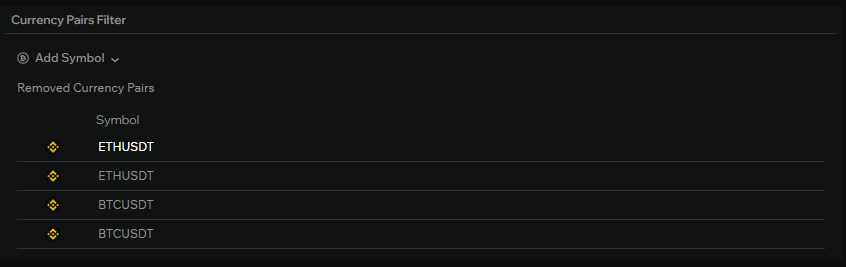
- Add Symbol — a dropdown for selecting the exchange and currency pair you want to exclude from the density map.
- Removed Currency Pairs — a table of pairs already added to the filter, with the exchange icon and symbol. These pairs do not appear in the screener and are not used for alerts, even if they match all other filters.
The currency pair filter is handy for hiding pairs that you are not interested in or that generate too many false signals.